Watch and widgets
Get back to HookPlan on your watch in one move
Pin the counter in the Smart Stack, keep the app on screen for an hour, and put it on your watch face.
Step 1: Open the Smart Stack
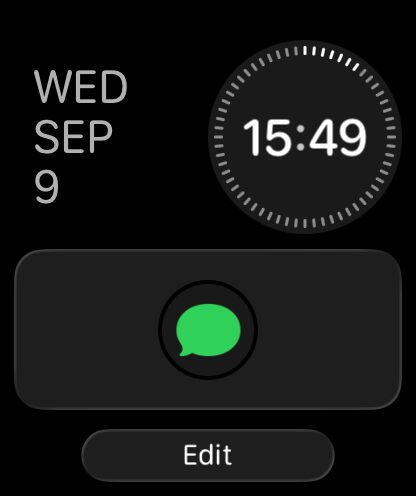
On your watch face, swipe up from the bottom of the screen, or turn the Digital Crown. This is the Smart Stack: a short stack of cards you can reach without hunting through the app list. Tap Edit at the bottom.
Step 2: Tap the plus
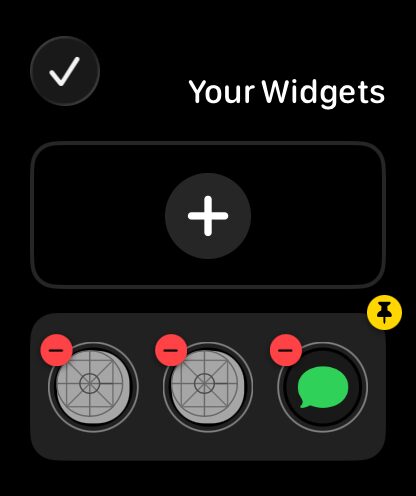
The stack opens in editing mode with a big plus at the top. Tap it to add a card.
Step 3: Find HookPlan in the list
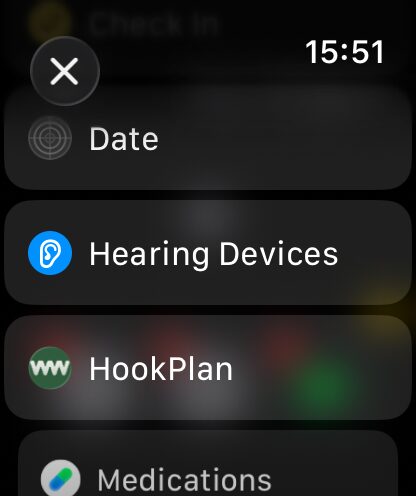
Scroll down to All Apps and tap HookPlan.
Step 4: Choose the Counter card
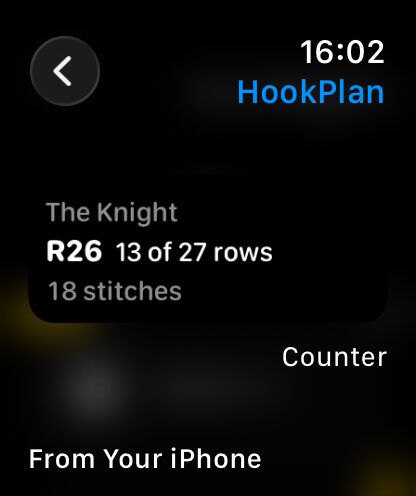
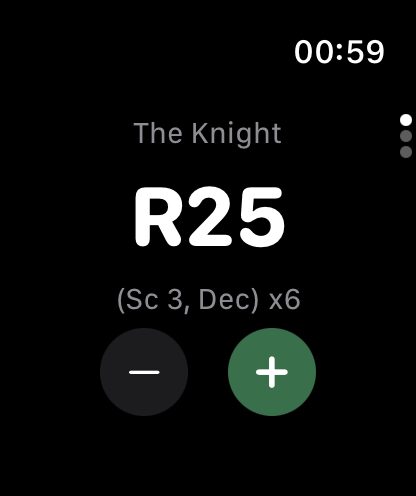
The card called Counter is the one from your watch. It shows the project you are counting on, the row you are working, and your stitch count. Tap it to add it. The Row +1 and Stitch +1 buttons further down come from your iPhone and count on the global counter.
Step 5: Pin it to the top
Back in Your Widgets, tap the yellow pin on the HookPlan card so it stays at the top of the stack instead of moving around. Then tap the checkmark.
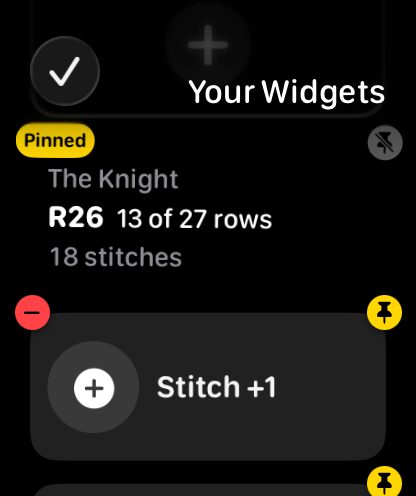
Step 6: One swipe, and you are back
From now on a swipe up from the watch face lands on your project. Tap the card to open HookPlan straight to the row screen. HookPlan also asks to float to the top of the stack on its own while you are counting and around the time of day you usually crochet.
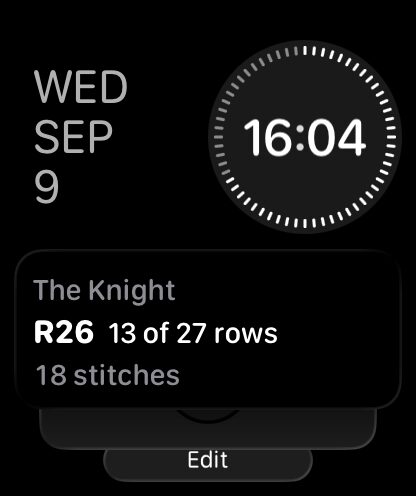
Step 7: Keep HookPlan on screen for an hour
By default your watch goes back to the clock two minutes after you stop tapping. Open Settings on the watch, tap General, then Return to Clock. You can also do this from the Watch app on your iPhone under General.
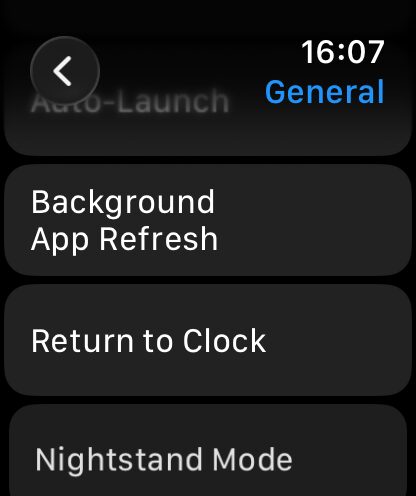
Step 8: Pick HookPlan from the app list
Scroll past the general options to the Apps list and tap HookPlan.
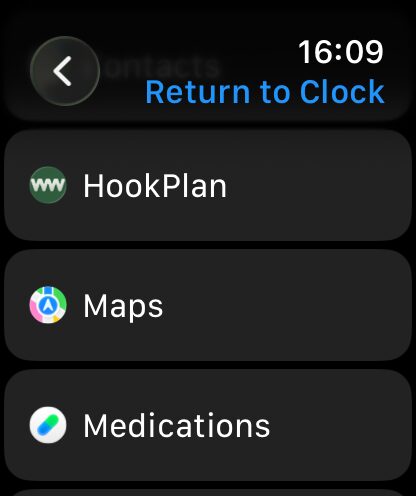
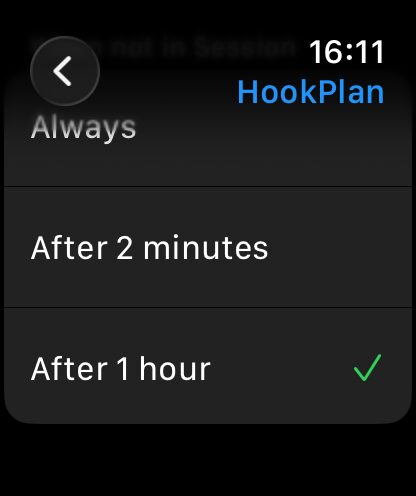
Step 9: Choose After 1 hour
Tap Custom, then After 1 hour. For an hour after your last tap, every wrist raise brings HookPlan back instead of the clock. HookPlan will also remind you of this setting after your first few counts on the watch.
Step 10: Put it on your watch face
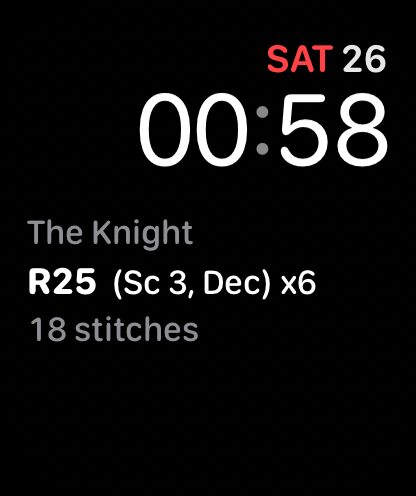
HookPlan also works as a complication. Press and hold your watch face, tap Edit, swipe to the complications, tap a slot, and choose HookPlan. It shows the row you are on, and one tap opens the app.
Step 11: Or double-press the Digital Crown
Press the Digital Crown twice quickly and the watch jumps straight back to the last app you used. While you are crocheting, that is HookPlan, so it is one double-press away from any watch face. (The side button opens Control Center, and double-pressed, Wallet.)
More about watch and widgets
Still have a question?
The FAQ covers the common ones, and the contact form reaches a real person. Either way, you will not be left guessing.
Visit support