Counting
Count with your voice
Say the stitch you just made and HookPlan counts it. Everything stays on your phone.
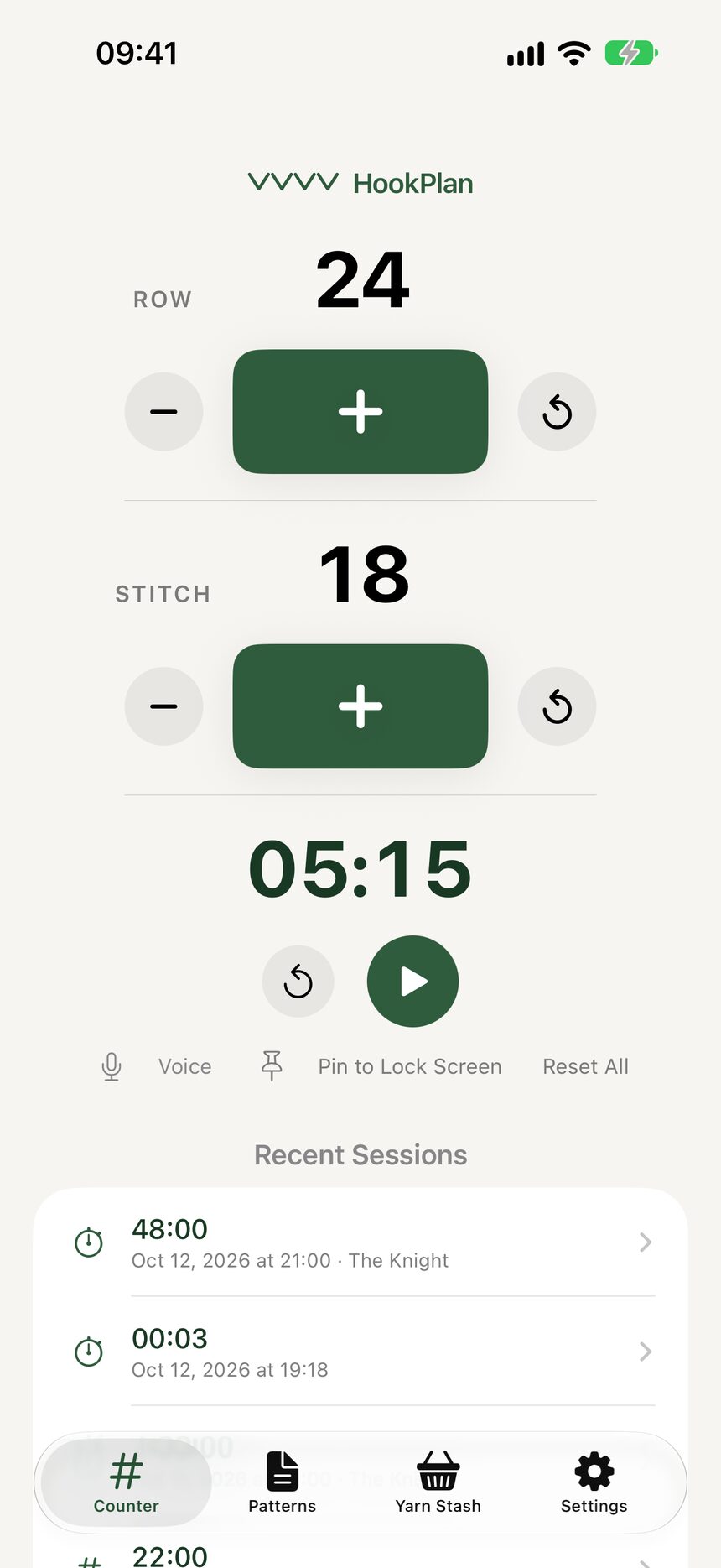
Step 1: Tap Voice on the Counter tab
The Voice button sits under the stopwatch, next to Pin to Lock Screen. Tap it once to start listening. The first time, your iPhone asks for the microphone and for speech recognition. Both are needed, and both stay on your phone.
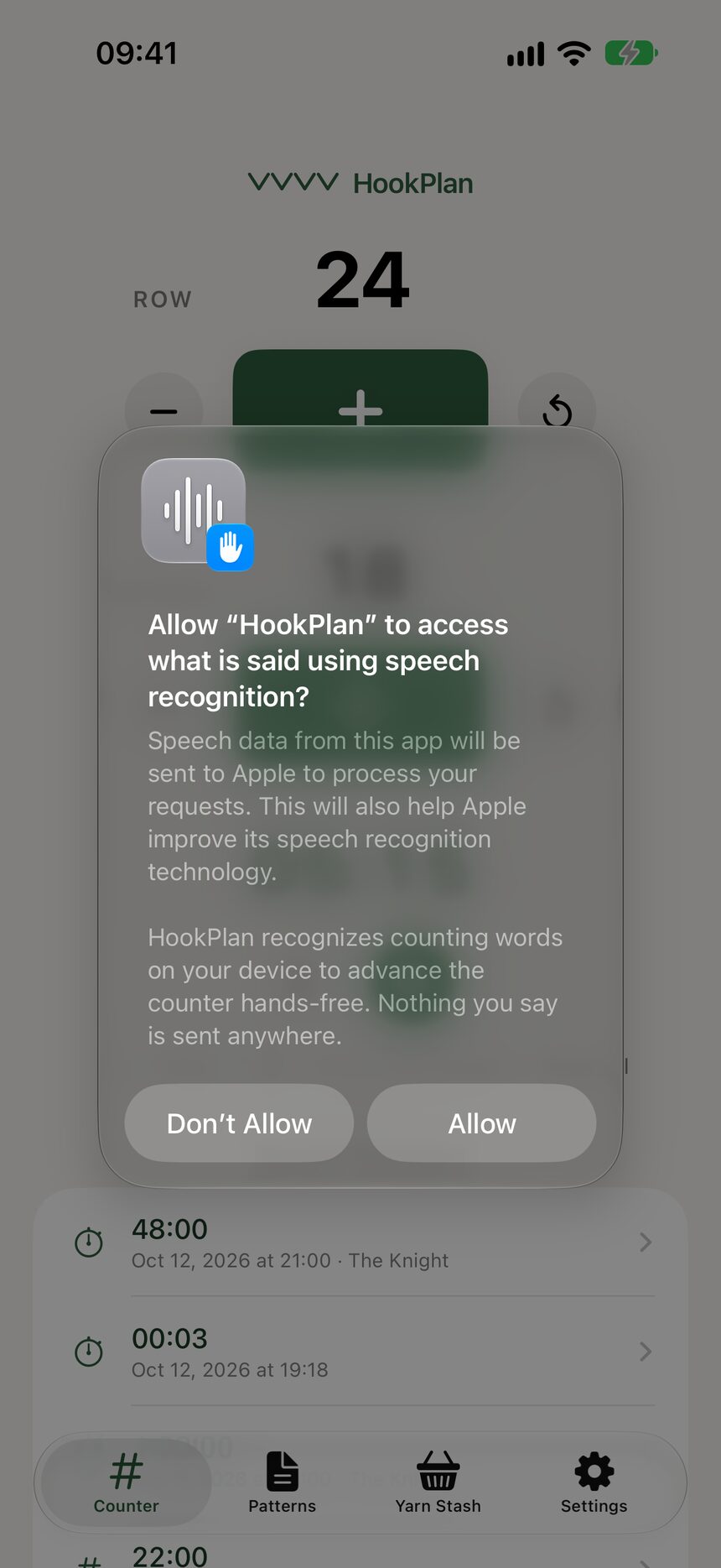
Step 2: Allow the microphone and speech recognition
Tap Allow on each prompt. The speech prompt carries Apple's standard wording about sending speech to Apple, but HookPlan asks for on-device recognition only: your words are recognized on the phone itself, nothing is recorded, and nothing is sent anywhere. If you tap Don't Allow by mistake, the Voice button offers a shortcut to Settings so you can change your mind.
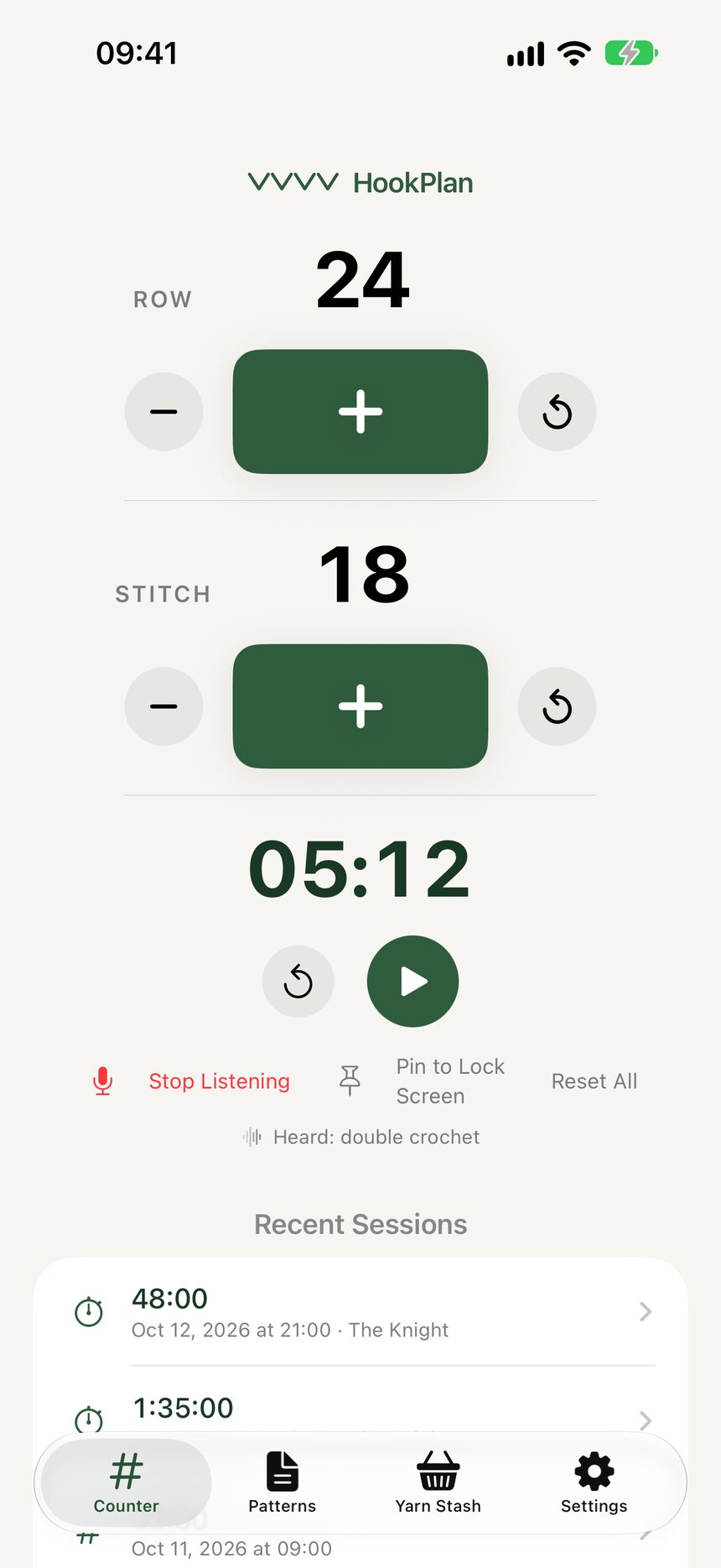
Step 3: Say what you just made
While the mic is red, say "stitch" or the name of the stitch you just finished: "single crochet," "puff," "crab stitch," US or UK names, all 33 of them. Each one counts one stitch. Say "next row" or "row done" to finish a row, "undo" to step back a row, and "reset" to clear (it asks first). A Heard line shows what HookPlan understood.
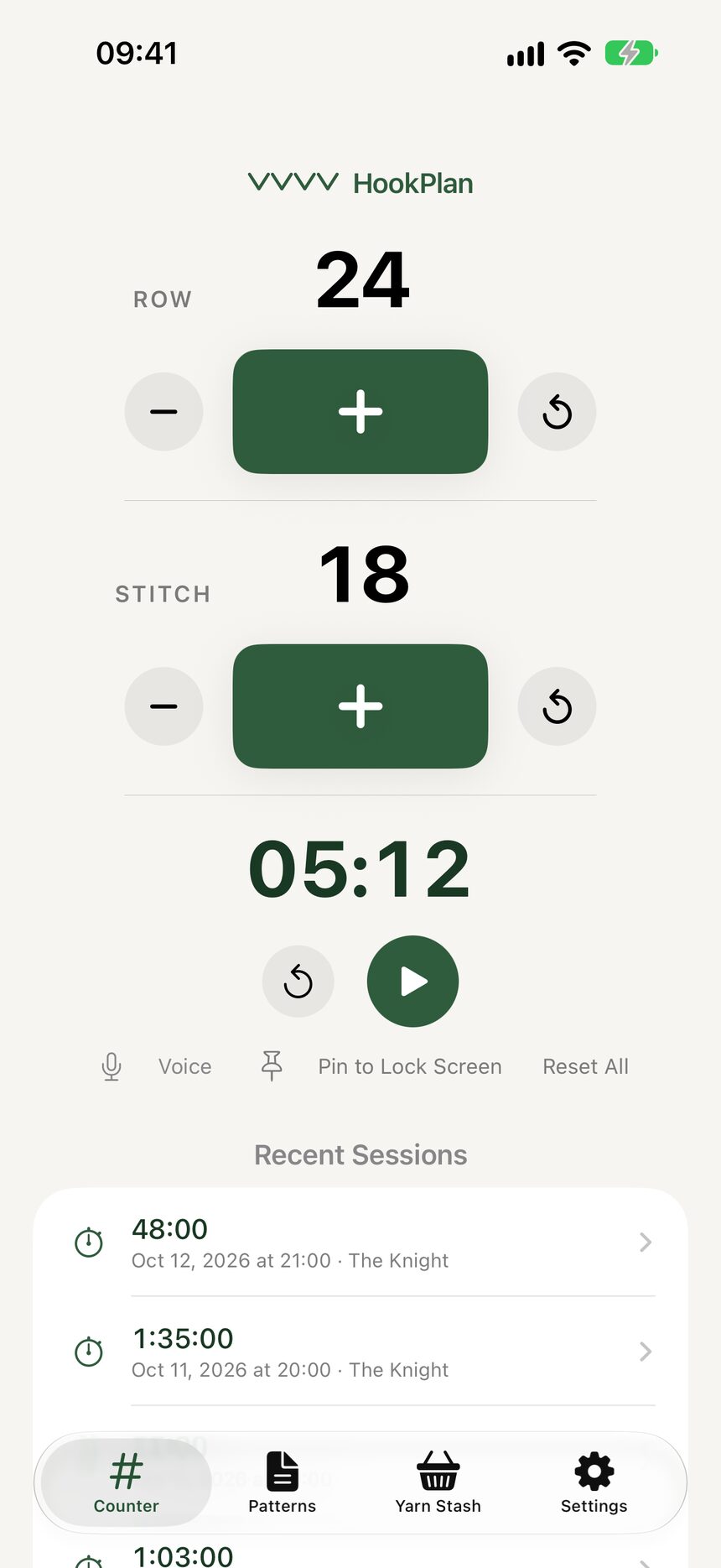
Step 4: It switches itself off
Tap Voice again to stop, or just put the yarn down: listening ends on its own after ten quiet minutes, when you leave the Counter tab, or when the app goes to the background. A podcast or music keeps playing the whole time.
More about counting
Still have a question?
The FAQ covers the common ones, and the contact form reaches a real person. Either way, you will not be left guessing.
Visit support